Why page groups matter
Google Search Console shows performance one URL at a time. That works for a landing page post-mortem, but most SEO decisions happen at the section level: how is the blog doing, which product category is slipping, are programmatic pages holding up as a cohort?
Content groups (sometimes called page groups or URL groups) let you roll up clicks, impressions, CTR, and average position for every page that shares a pattern. Instead of adding up twenty blog posts by hand, you see one trend line for /blog/.
If one post dips while the group stays flat, you know it is a page-level issue. If the whole group drops, you are looking at a structural or demand problem.
What you can group
Here are patterns teams use most often:
- All blog posts (
/blog/or/articles/) to compare editorial traffic against product pages - Product categories (
/shop/shoes/,/shop/bags/) to see which catalog slices drive discovery - Programmatic SEO pages (e.g. everything under
/go/or/tools/) to monitor template performance as a unit - Landing page variants (multiple
/lp/URLs) for paid or partner campaigns - Locale or market folders (
/de/,/uk/) when you split content by region
The point is not perfect taxonomy on day one. Start with the slices you actually make decisions about.
How GSC handles grouping today
Search Console has no saved “content groups” feature. You approximate groups with filters on the Performance report:
- Open Performance → Search results
- Click + New under the chart
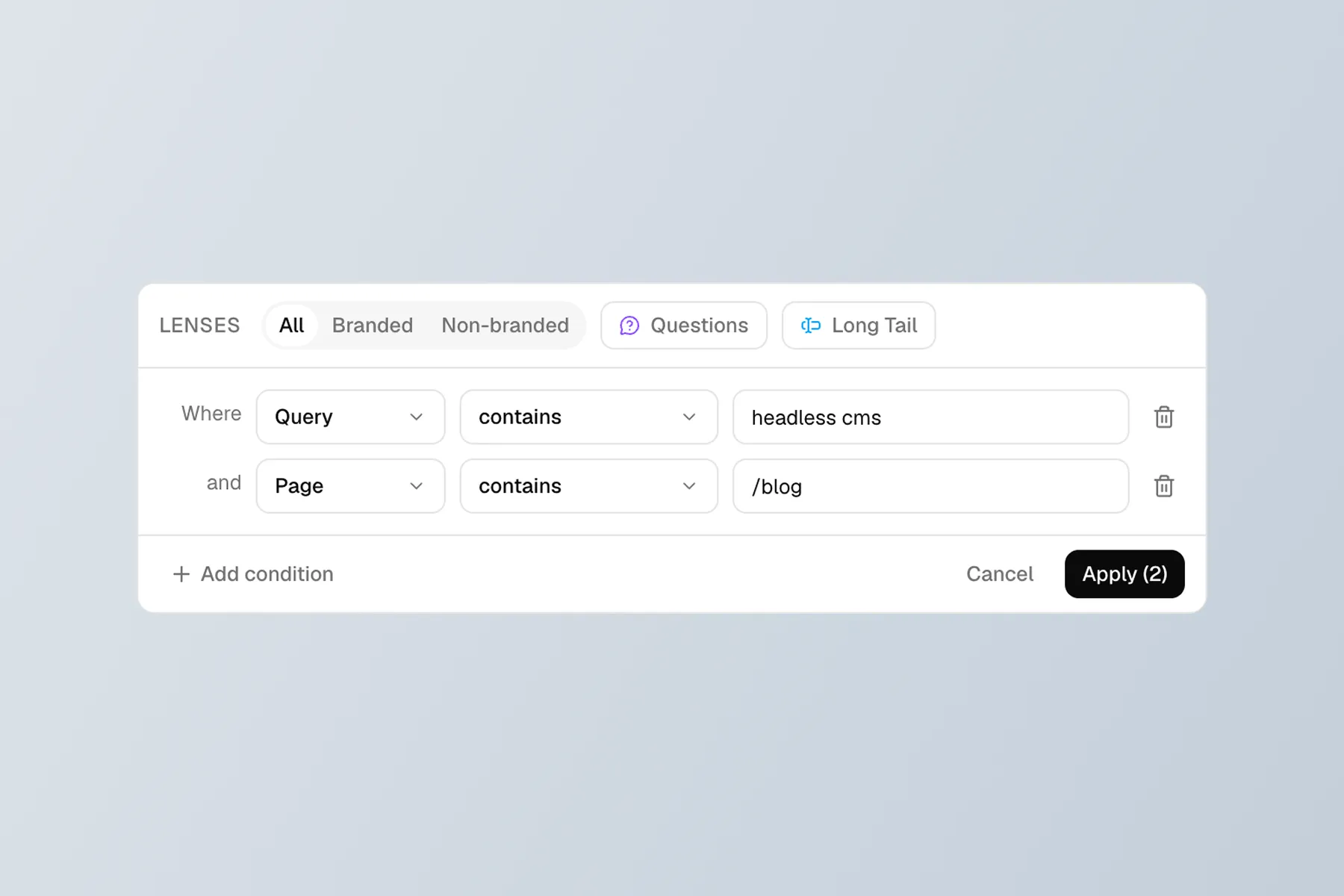
- Choose Page and pick a filter type:
- Contains for a path fragment like
/blog/ - Doesn’t contain to exclude sections
- Custom (regex) for precise patterns, e.g.
^https://example\.com/blog/
- Contains for a path fragment like
You can stack filters (blog AND country = USA) to narrow further.
The catch
Every filter set is temporary. Close the tab or switch properties and you rebuild it. Regex typos are easy, and there is no history labeled “Q2 blog performance.” Teams end up screenshotting charts or exporting CSVs to spreadsheets just to compare the same group month over month.
For occasional checks, manual filters are fine. For ongoing monitoring, the friction adds up.
Common filter recipes
These work in the GSC UI without leaving Performance:
| Goal | Filter type | Example |
|---|---|---|
| All blog URLs | Page contains | /blog/ |
| Exclude blog from sitewide view | Page doesn’t contain | /blog/ |
| Multiple sections at once | Page matches regex | `/blog/ |
| pSEO template | Page contains | /tools/ |
| Single subdomain path | Page contains | https://docs.example.com |
Tip: Regex is powerful but brittle. Test on a small date range first. A trailing slash mismatch can zero out your results silently.
Analyzing a group once it is filtered
With filters applied, use the same workflows you would on a single page:
- Trend the date range (28 vs 90 days) for clicks and impressions
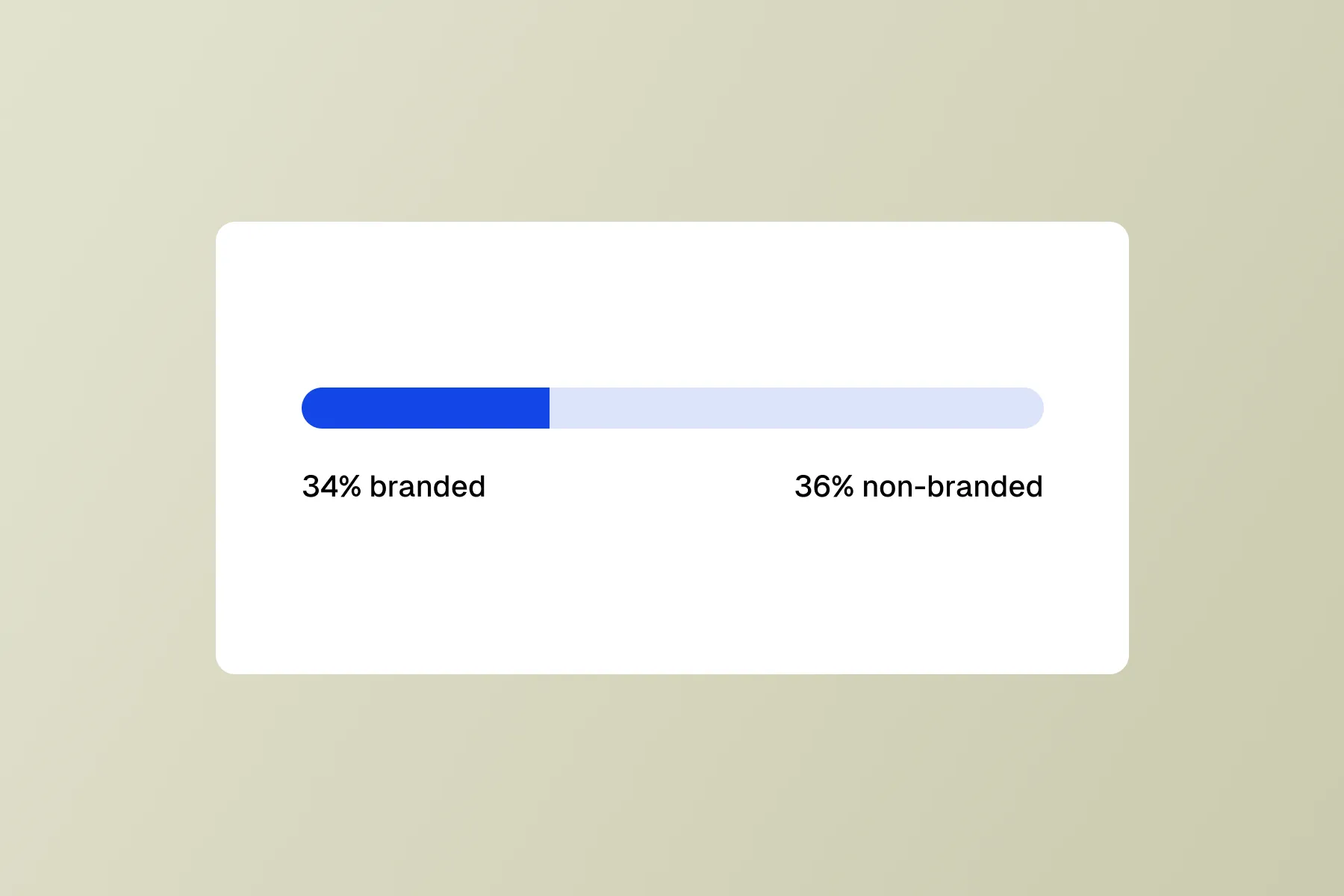
- Queries tab to see which keywords drive the group ( branded vs non-branded often splits here )
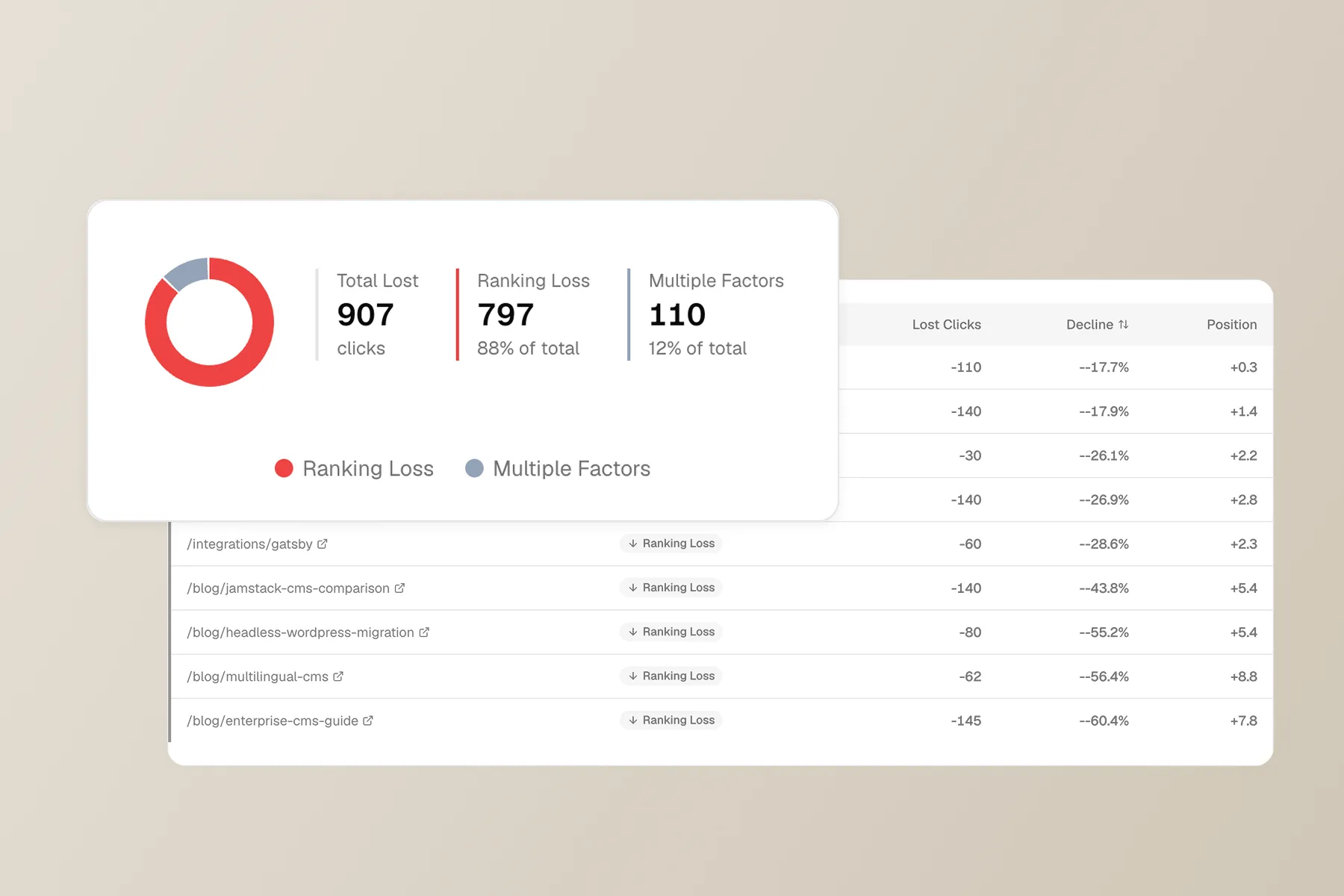
- Pages tab inside the filtered view to find outliers: which URLs gained or lost within the group
- Compare periods (when available) to spot seasonality vs real decay
Drill from group → page → query. The group tells you whether to investigate; the page list tells you where.
When saved groups are worth it
Consider a workflow outside raw GSC when you:
- Re-check the same five to ten groups every week
- Share reports with stakeholders who will not rebuild regex filters
- Need cluster-level views (queries grouped by topic, not just URLs grouped by path)
- Want decay alerts tied to a section, not a single URL
Tools like SEO Gets popularized saved URL groups for this reason. betr.gsc takes a related angle: it builds topic clusters from query data and scores them for authority and opportunity, so you can monitor thematic slices even when URLs do not share a clean folder pattern.
A practical setup checklist
- List your decision slices (blog, docs, product, pSEO, markets)
- Write the URL pattern for each (contains vs regex)
- Baseline 90 days of clicks, impressions, and avg. position per group
- Note top queries per group to catch branded inflation
- Pick one outlier page per group monthly for deep dives
- Automate or save anything you repeat more than twice a month
Using groups in betr.gsc
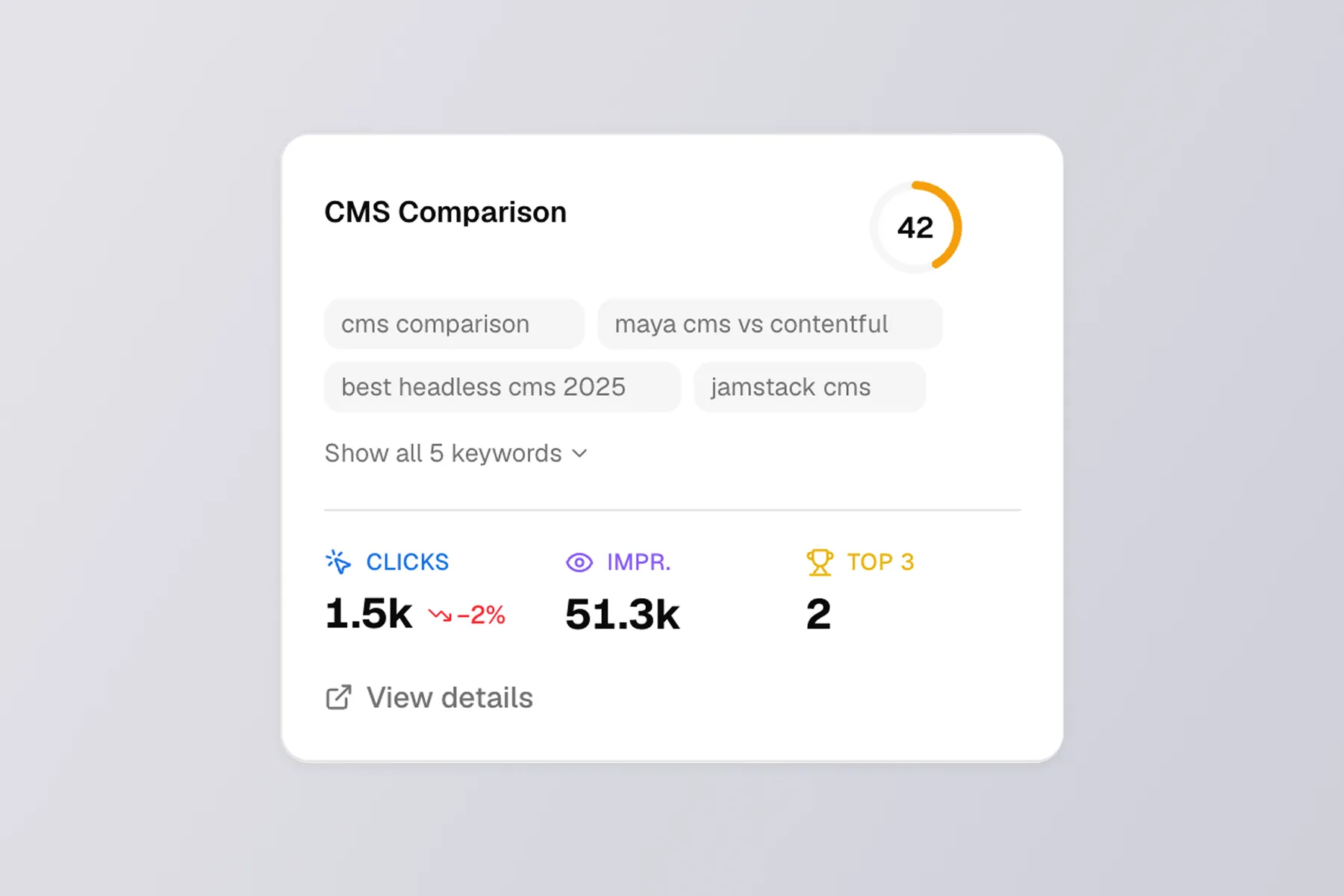
After you connect Search Console, betr.gsc proposes topic clusters from your query data on the first run. That complements path-based groups: URL filters tell you how /blog/ is doing; clusters tell you how “project management software” as a theme is doing across multiple URLs.
Use path groups in GSC (or a saved-group tool) for site architecture questions. Use cluster scores in betr.gsc when the same topic spans templates, legacy URLs, and new content.
Together they answer: Is this section of the site healthy, and is the underlying topic still winning clicks?
Summary
Page groups turn Search Console from a URL lookup tool into a section-level analytics layer. GSC filters get you there for ad hoc analysis; saved groups or cluster-centric tools keep the view persistent.
Start with one group you care about this week (usually the blog or your largest pSEO template), baseline it, and only then expand. Consistency beats covering every folder on day one.